
In this article, our team provides a comprehensive explanation of how to use IPTV on iOS and Android devices, including a review of selected applications and a clear, step-by-step guide to their proper use. We invite readers to follow along to discover all relevant details.
Table of Contents
what is IPTV ?
IPTV (Internet Protocol Television) is an IPTV service that lets users watch live TV, VOD, catch-up and on-demand content via an app that streams live channels over an internet connection instead of traditional cable or satellite. Using compatible IPTV apps on smart TVs, Android, iOS, Firestick or a streaming device, users enter the M3U URL, complete the setup, access TV channels, and enjoy high-quality streaming IPTV online.
How to use IPTV in IOS ?
1. Smarters player lite :
Smarters player lite is a practical media player that allows users to play and organise channels easily through a simple and smooth interface. The app focuses on user-added content only, supporting a wide range of media formats and playlists. It offers efficient search and organisation tools, reliable live streaming support, and a user-friendly design. The application does not provide built-in content and respects copyright rules, ensuring a clean and controlled viewing experience.
How to use it ?
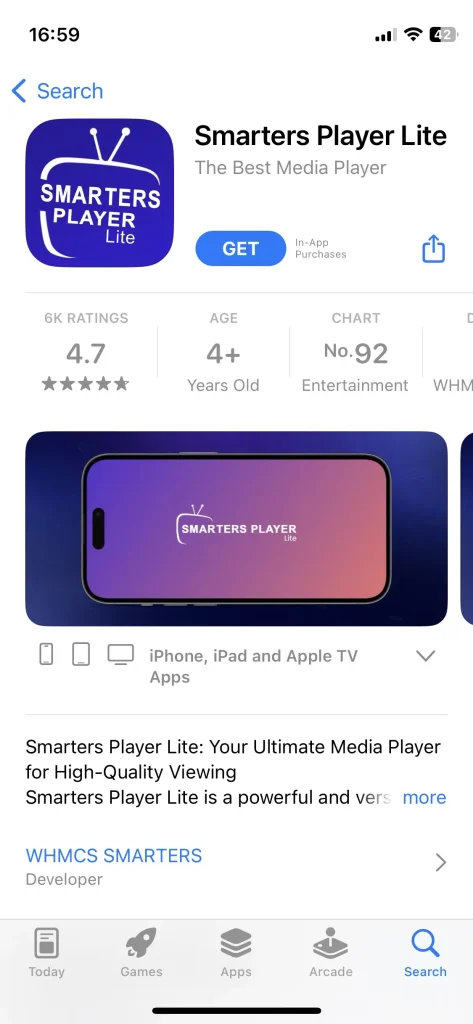
To learn how to use this application, we will first download it from the Apple App Store.
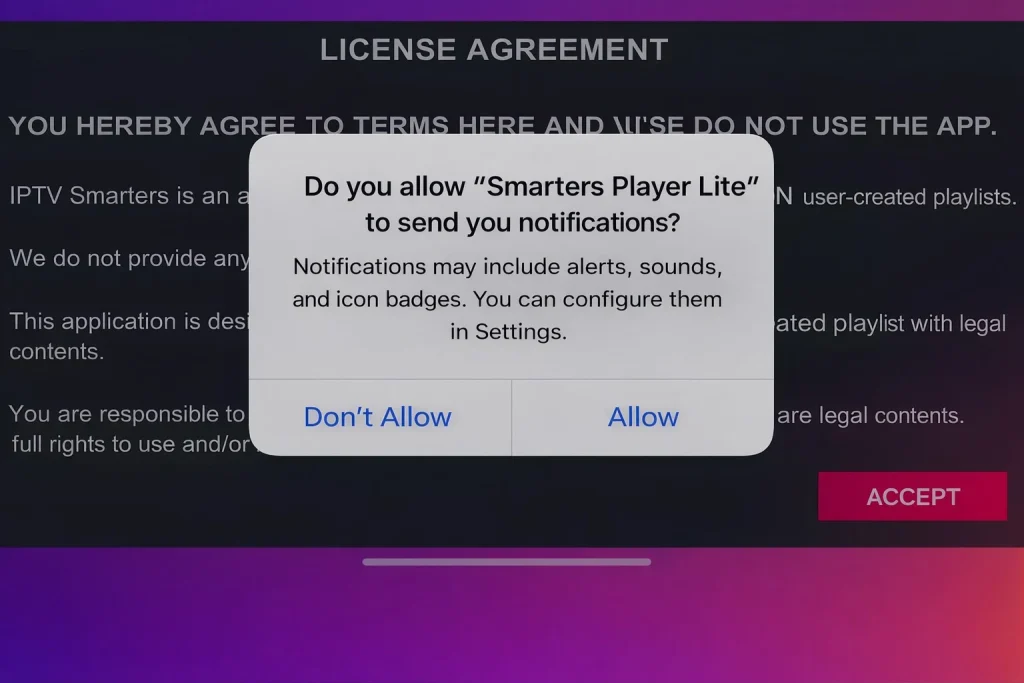
After downloading the application, we will open it. Then, we will accept the app’s terms and privacy policy.
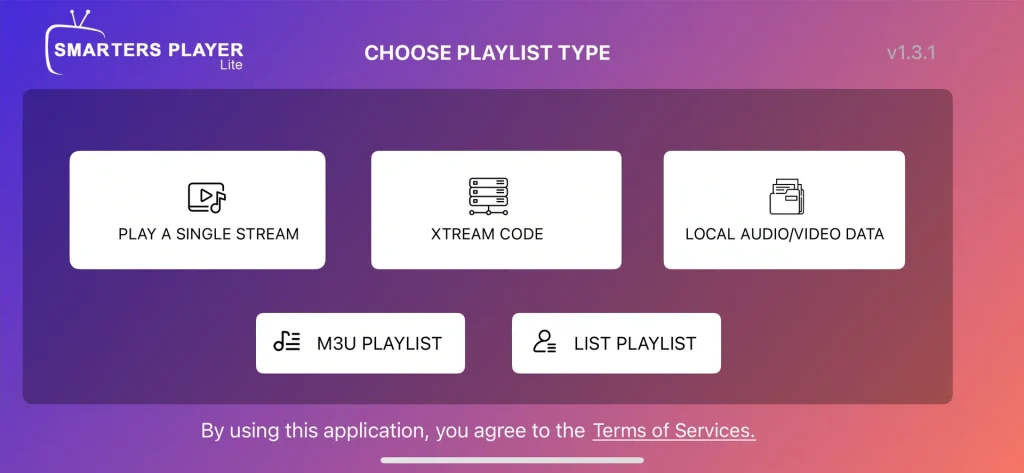
After that, the application will display the available options for adding a playlist. We will choose the Xtream Codes format.
We will then enter the required information by adding a name for the playlist, the username, the password, and the server URL. These details are provided by the service provider.
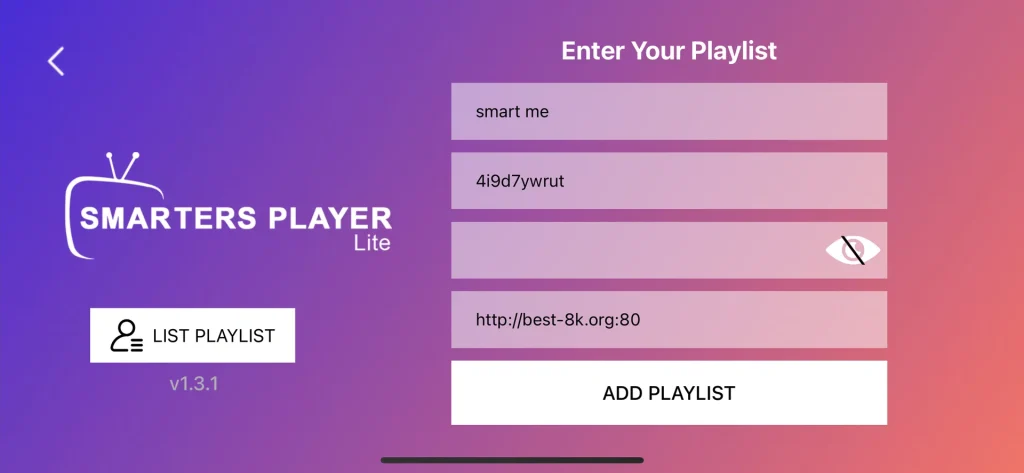
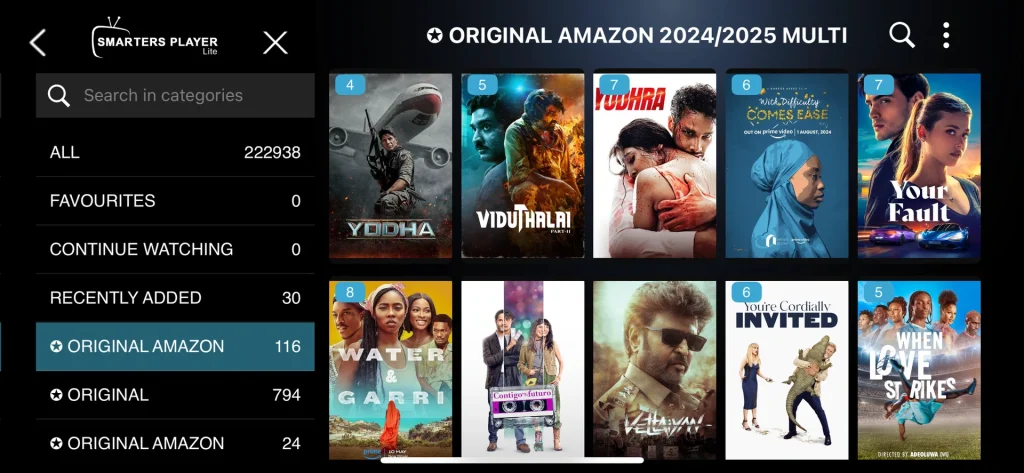
After adding the playlist, we will wait a short period for the application to load. The loading process may take between 5 and 10 minutes at most. Once completed, your content will be ready to watch.
2. Iptv stream player :
IPTV Stream Player offers a stable viewing experience for live broadcasts and on-demand content, with a quick setup that suits beginner users. The app supports most major video formats and delivers up to 4K quality. It includes global search, favourites, subtitles, dual audio, parental controls, and content-hiding options. The player works only with user-added playlists and does not provide built-in channels or media content.
How to use it ?
We will first download our application from the Apple App Store.
Immediately after downloading the application, we will open it. On the main interface, we will find the option to enter the Xtream Codes details previously provided by the service provider, including the username, password, and server URL.
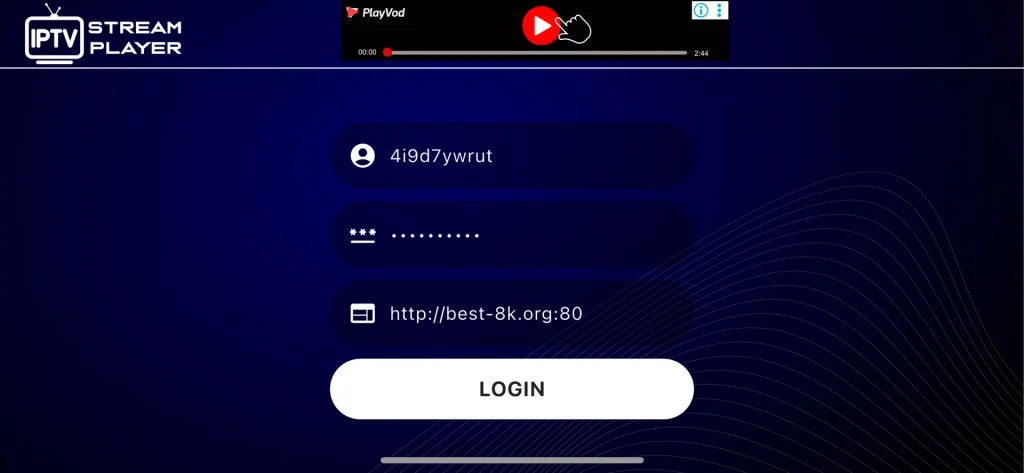
After adding the playlist, we will wait a short while for the content to load. Once the loading is complete, you can comfortably enjoy watching films, series, and live broadcasts without any difficulty.
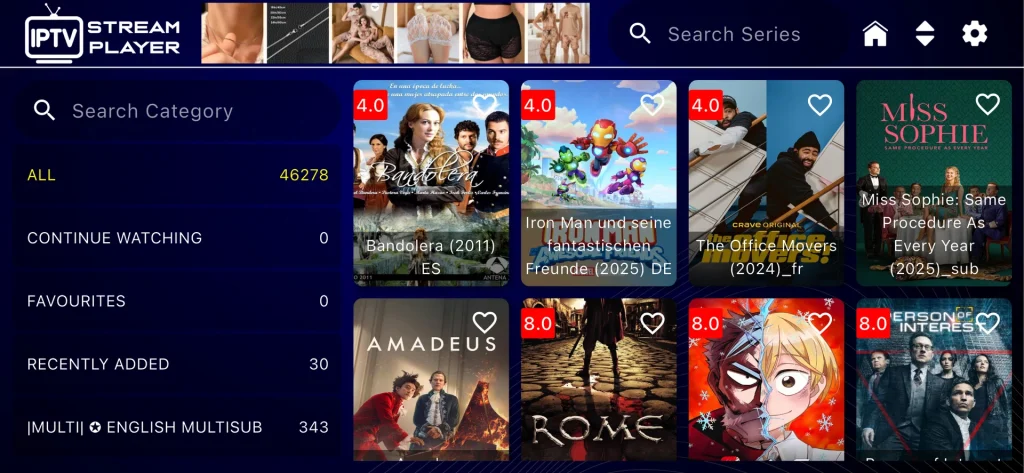
3. Gse smart iptv :
GSE Smart IPTV is widely used to play channels in high quality, with flexible playlist organisation and advanced management options. The app works as a powerful multimedia player, allowing users to add their own playlists and EPG data from external providers. It supports M3U and Xtream Codes, offers strong search and sorting tools, and handles various streaming protocols smoothly. Designed for iOS devices, it delivers a fast, reliable, and user-friendly viewing experience without providing built-in content.
How to use it ?
We will download the application from the Apple App Store.
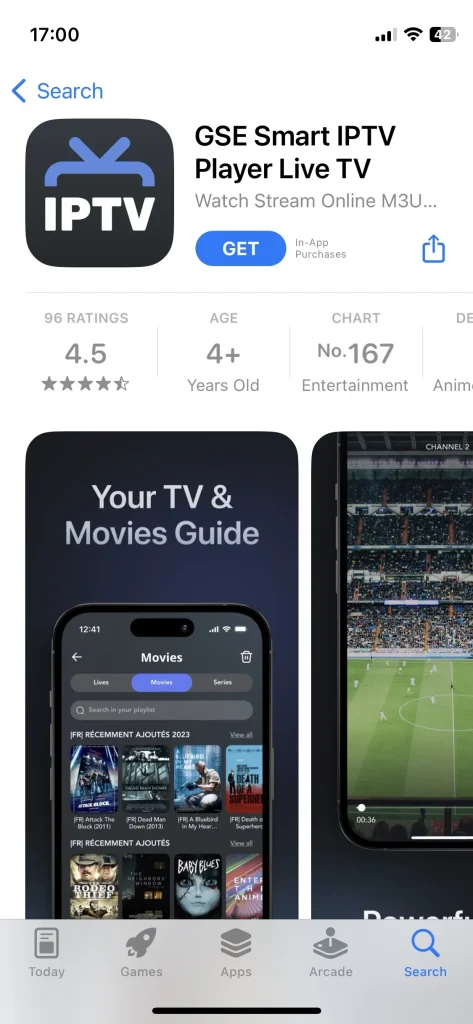
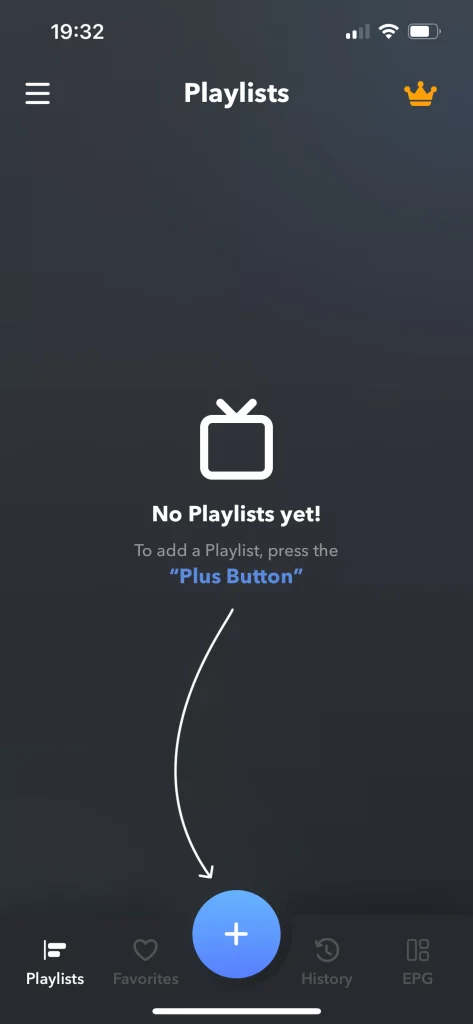
After downloading the application, we will open it. On this screen, you will see the highlighted section where you can add a playlist. From there, you can choose between the Xtream Codes or M3U option.
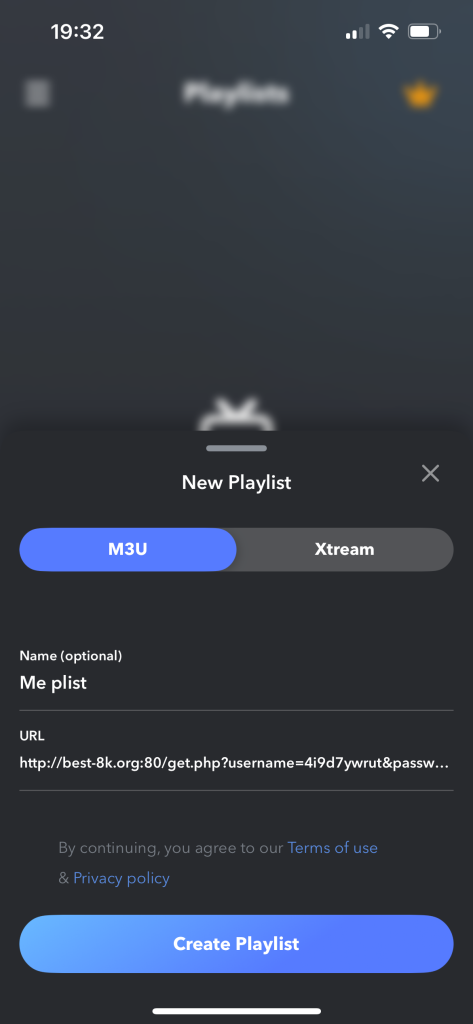
We will enter a name for our playlist and paste the server URL.
We will wait a short moment for the content to load. After that, you will find a wide selection of films and various programmes available to watch.
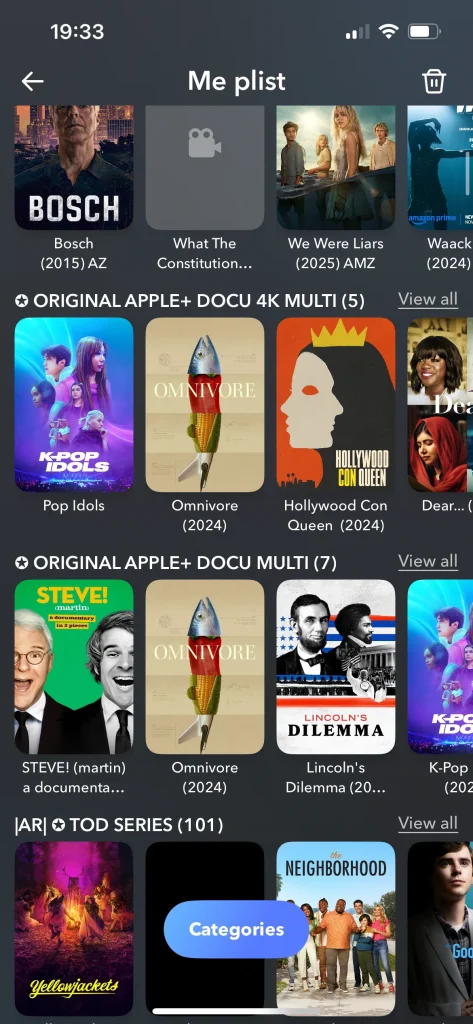
4. zen iptv player :
Zen IPTV Player stands out for its fast performance and lightweight design, making it a suitable choice for everyday use without complexity. The app presents user content through a clean, modern interface inspired by leading streaming platforms and works seamlessly across Apple TV, iPhone, and iPad. It supports 4K, HDR, subtitles, multi-language audio, EPG, and picture-in-picture features. Zen IPTV Player does not provide built-in content and is designed solely to play legally added sources.
How to use it ?
We will do the same thing and first download the application from the Apple App Store.
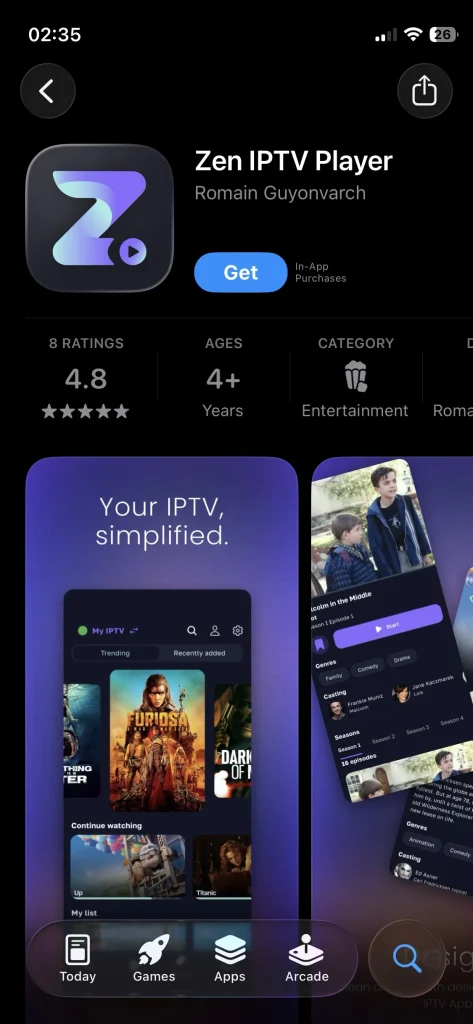
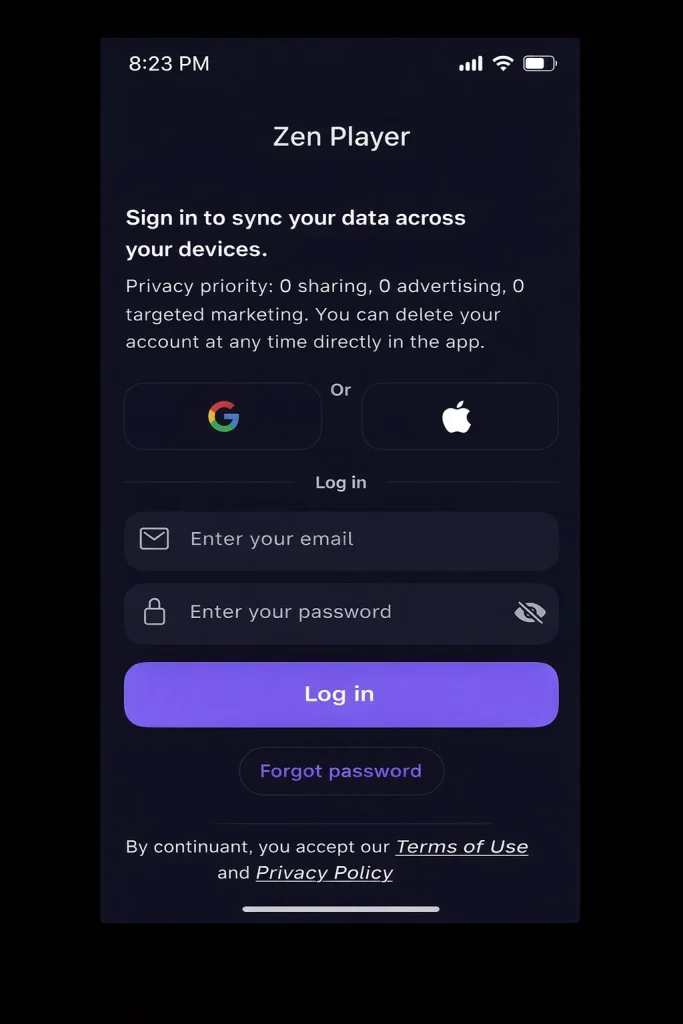
After downloading and opening it, we will see that the application needs to be linked to an email account in order to be used.
After that, we select Add Playlist and enter the information shown on the screen using the Xtream Codes method. We will add a name for the playlist and fill in the details provided by the service provider in their appropriate fields.
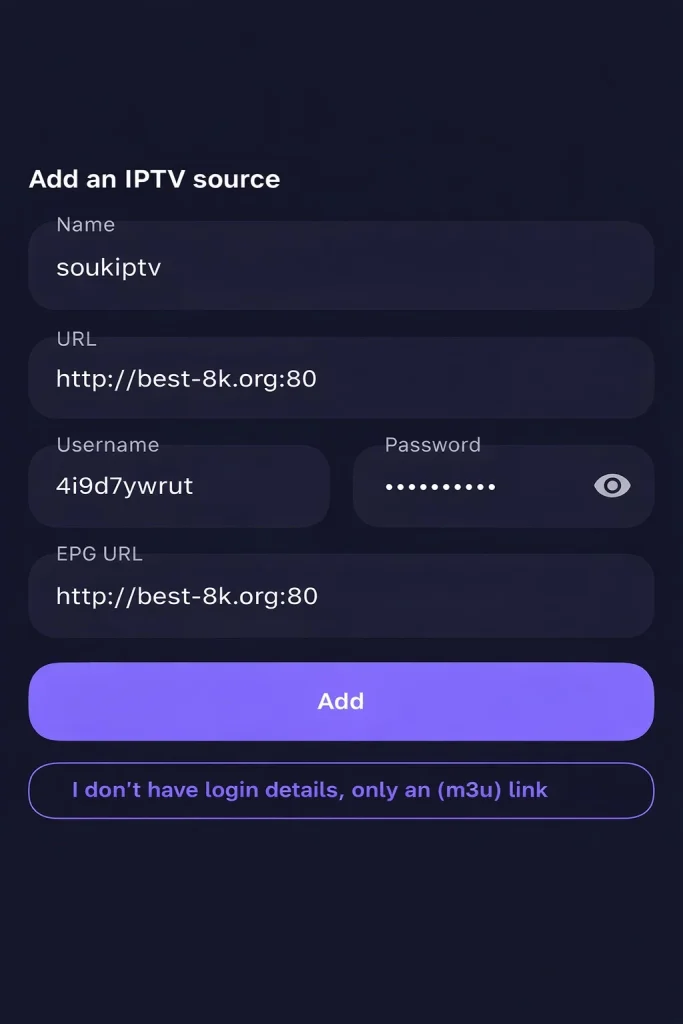
After that, we will wait a short while for the content to load.
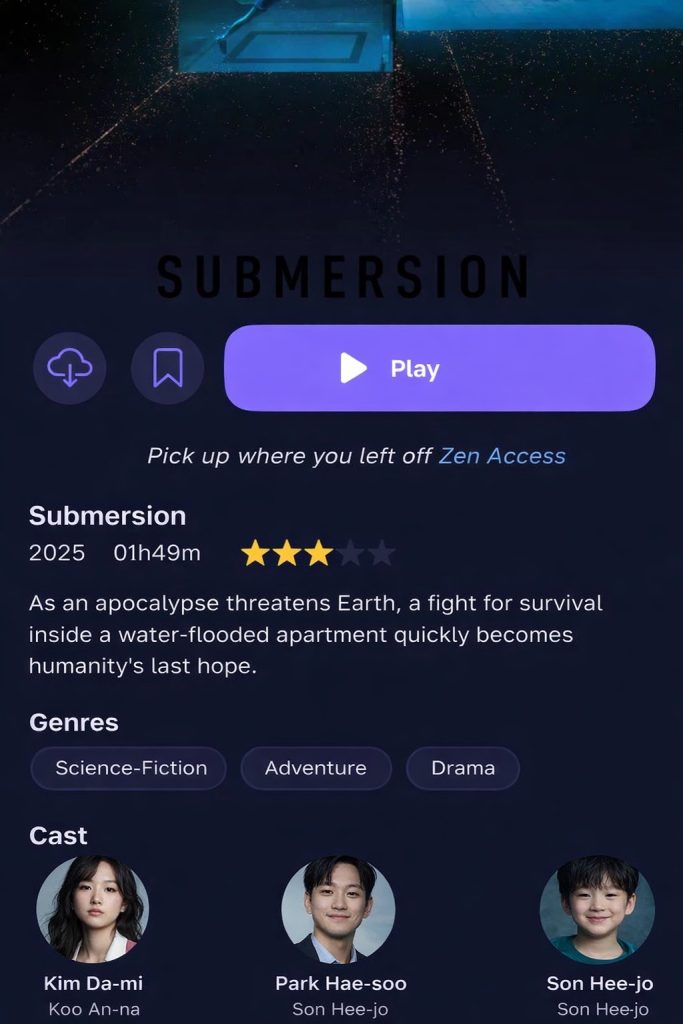
5. IPTVX :
IPTVX delivers an advanced viewing experience with an elegant interface and smart features that enhance easy navigation between channels. The app allows users to organise and enjoy their own digital content across multiple Apple devices, with full support for modern formats and services such as M3U and Xtream API. It offers rich EPG integration, favourites, continue-watching options, parental controls, and cloud synchronisation, all within a refined and user-focused design.
How to use it ?
In the same way, we will also download this application.
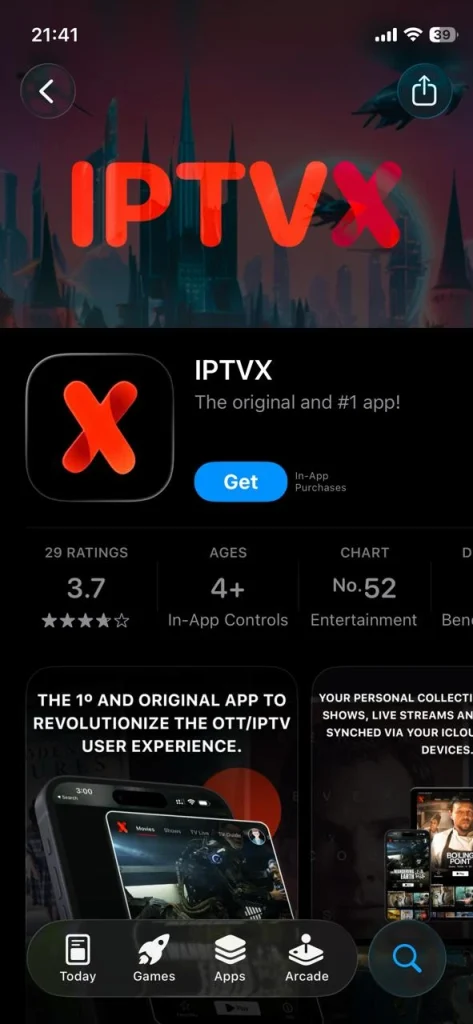
After opening it, we will accept the application’s initial setup requirements. Then, we add the playlist in the indicated section.
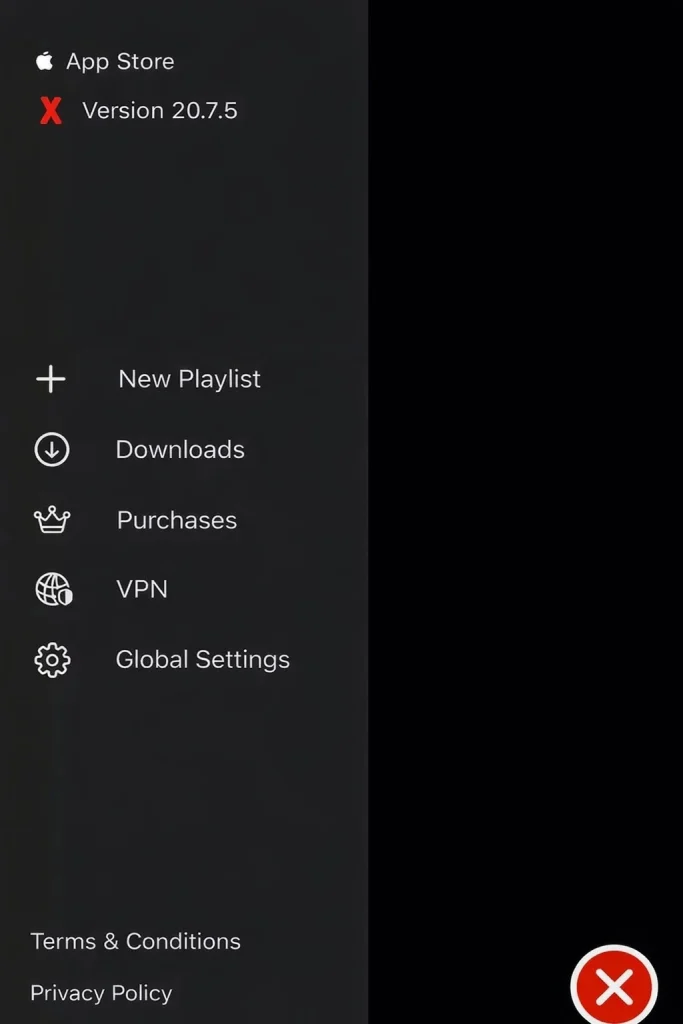
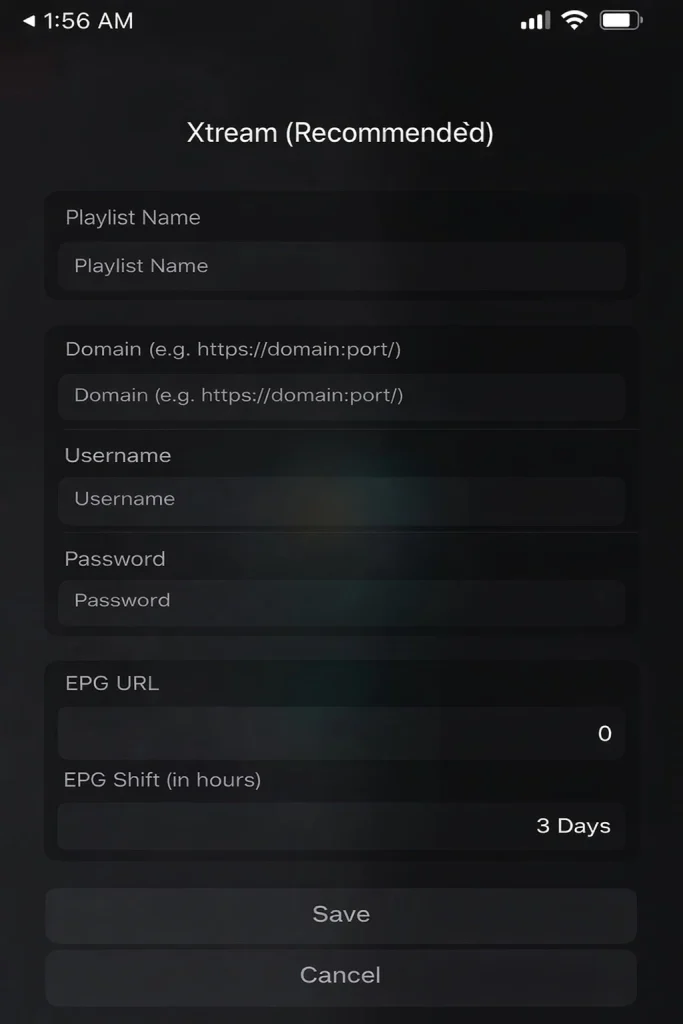
We fill in the required information for the Xtream Codes format that we previously received from the service provider.
We wait for a short period for the content to load. This process may take a few minutes.

After that, you will find the content fully loaded, including films, series, and live broadcasts.
6. IPTV Smarters pro :
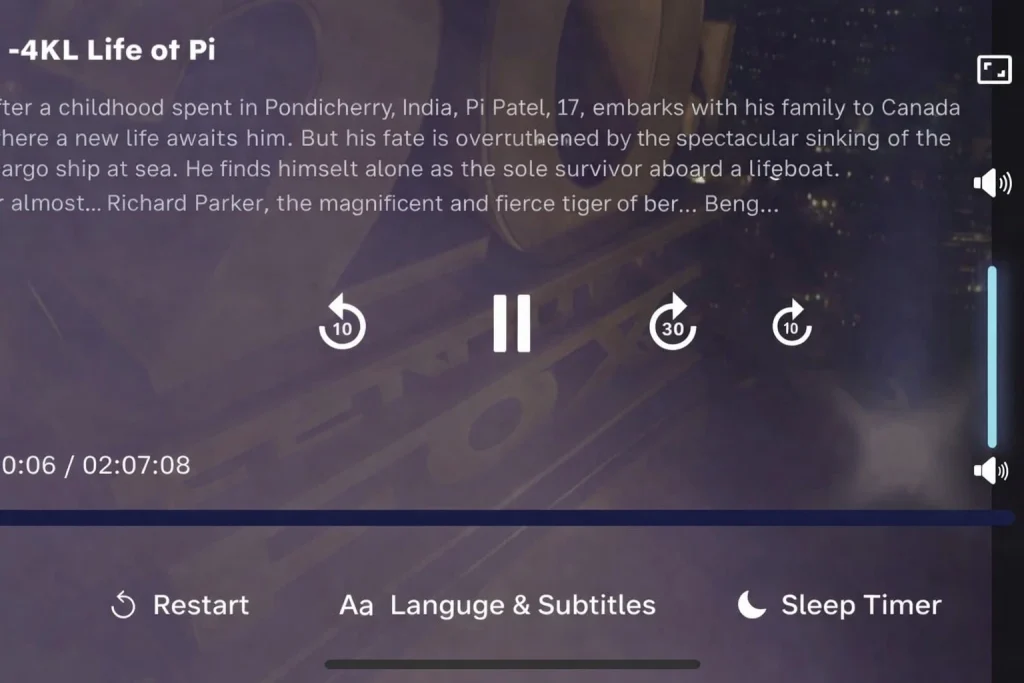
IPTV Smarters Pro is known for its great flexibility and wide compatibility with various services, in addition to supporting multiple viewing modes. The app allows users to manage playlists easily using M3U files and Xtream Codes integration, offering smooth and high-performance playback. It features advanced search, smart categorisation, favourites, and an elegant interface designed for fast navigation. IPTV Smarters Pro works as a professional media player and does not include built-in content, relying entirely on user-added sources.
How to use it ?
We will first download the application from the Apple App Store.
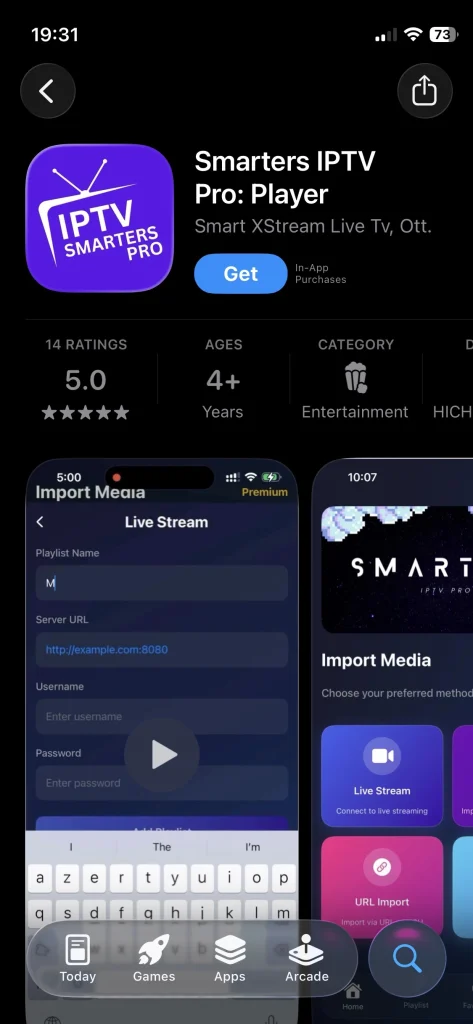
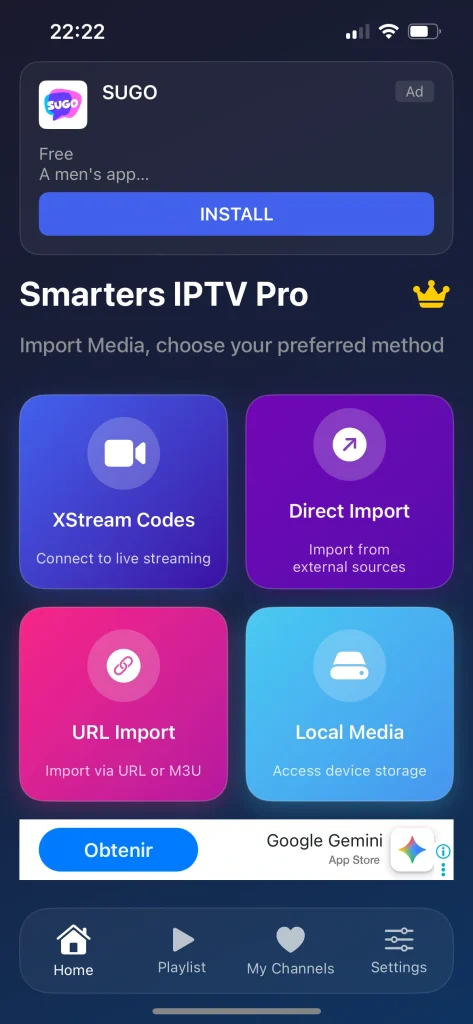
After that, we will choose the format we want to use to add our playlist.
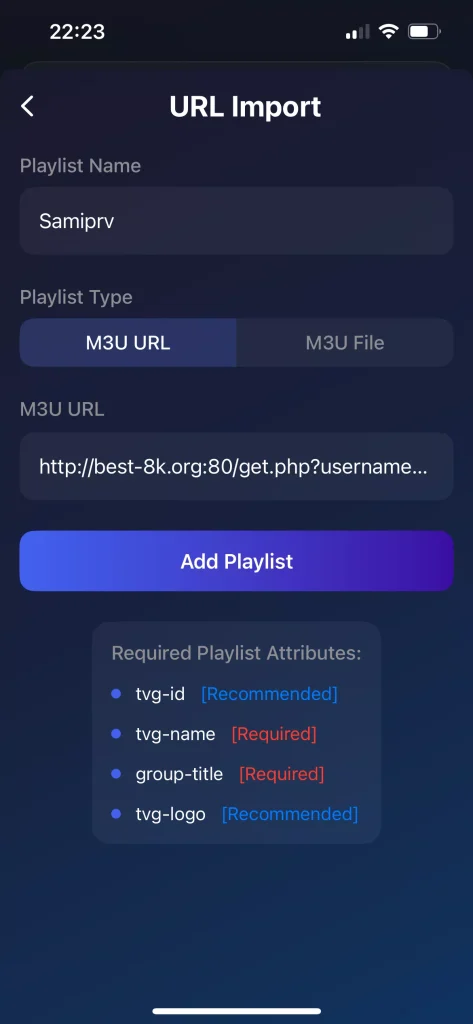
We then enter the required information provided by the service provider.
We wait a few minutes for the content to load.
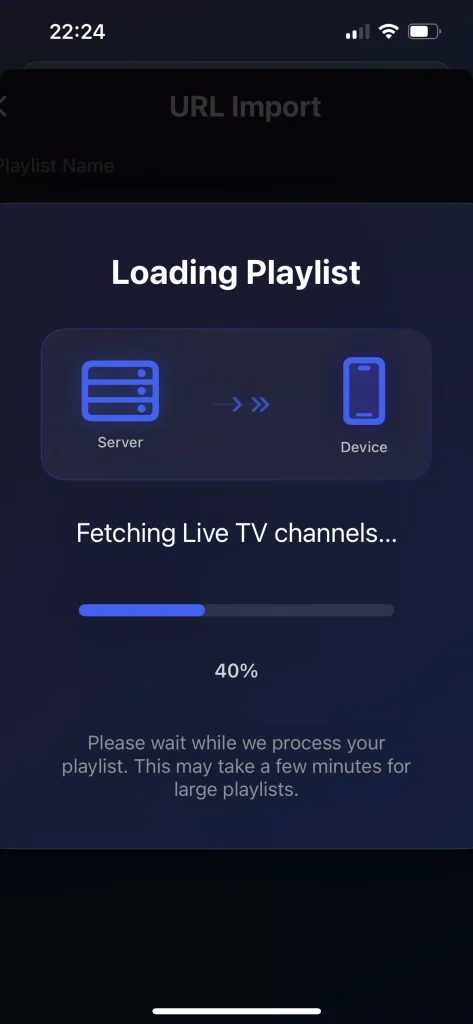
Once the loading is complete, you can enjoy watching your favourite programmes smoothly.
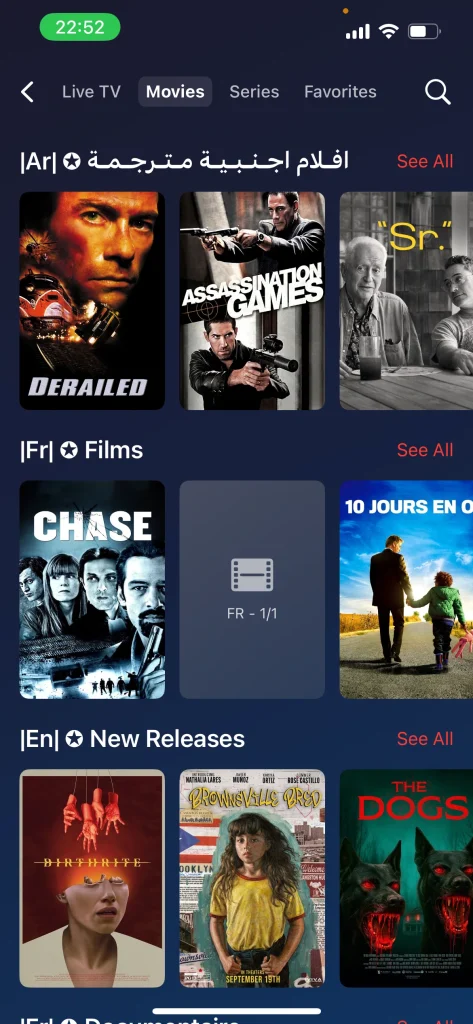
7. IPTV + :
IPTV Plus provides organised channel and content management with stable performance and a comfortable user experience. The app allows users to watch live broadcasts and on-demand media from their own sources across iPhone, iPad, and Apple TV. It supports M3U playlists and Xtream links, offering smooth playback through a clean interface. IPTV Plus does not include any built-in channels or content and requires user credentials for full access.
How to use it ?
We start by downloading the application from the Apple App Store.
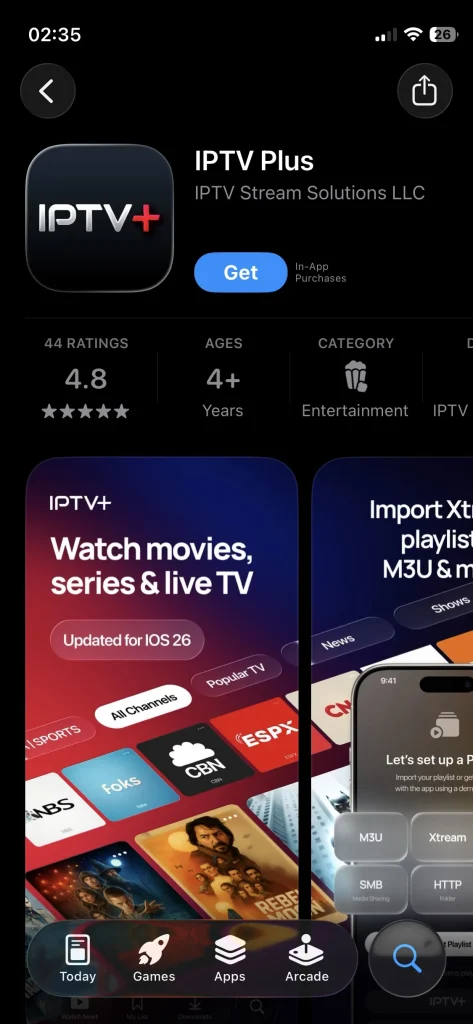
After downloading and opening the application, we need to link it to an email account in order to be able to use it.
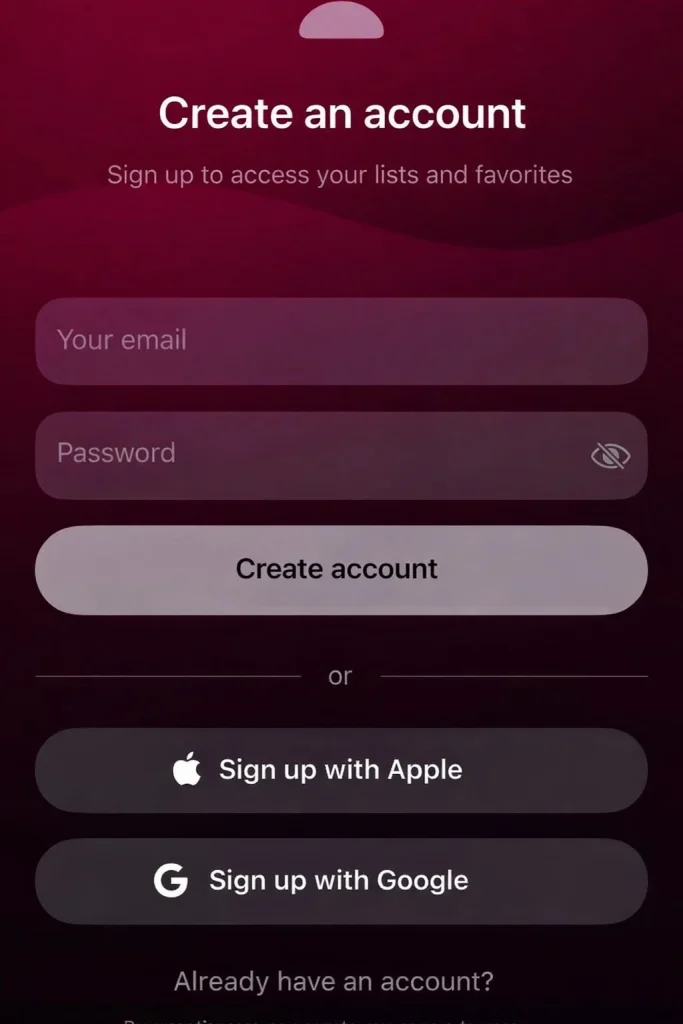
After that, we tap on Add Playlist in order to add a playlist.
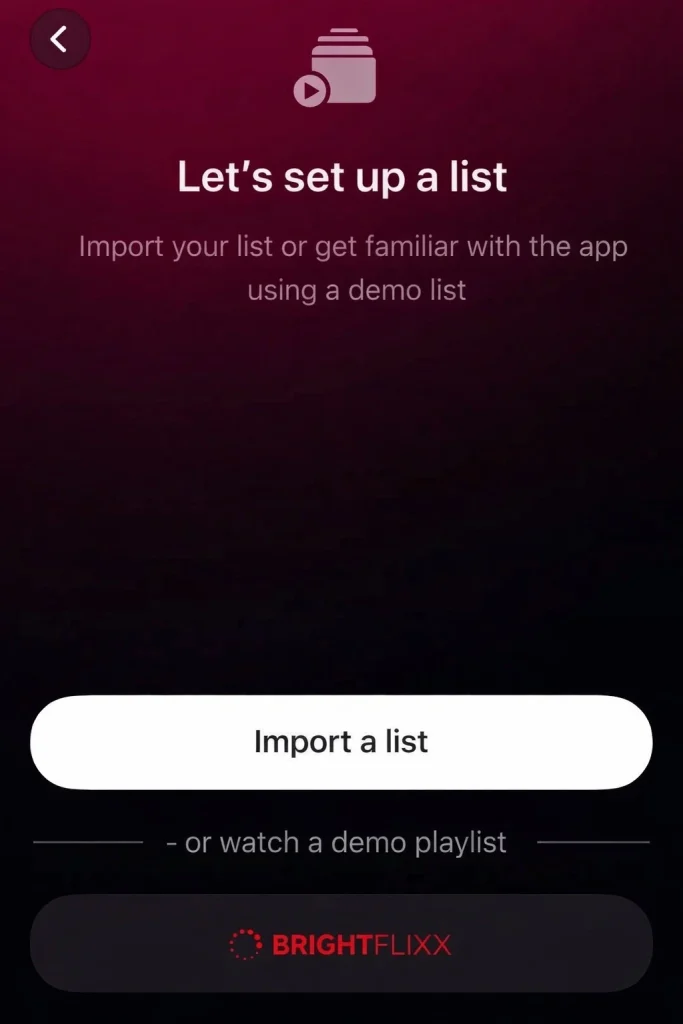
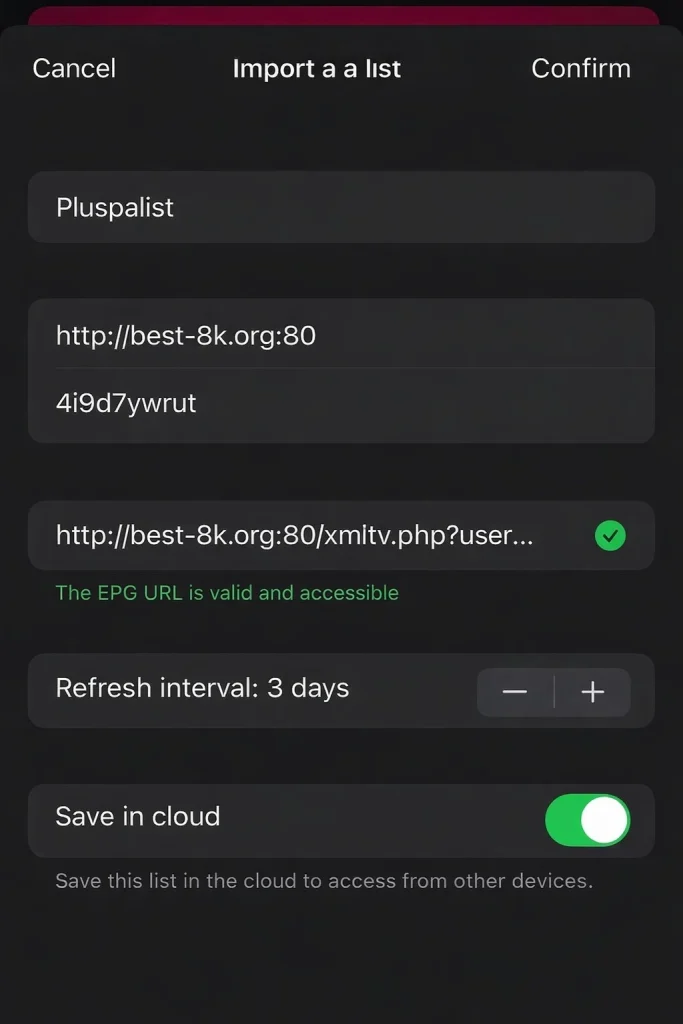
We enter the required information provided by the service provider, fill it in the appropriate fields, and then add the playlist.
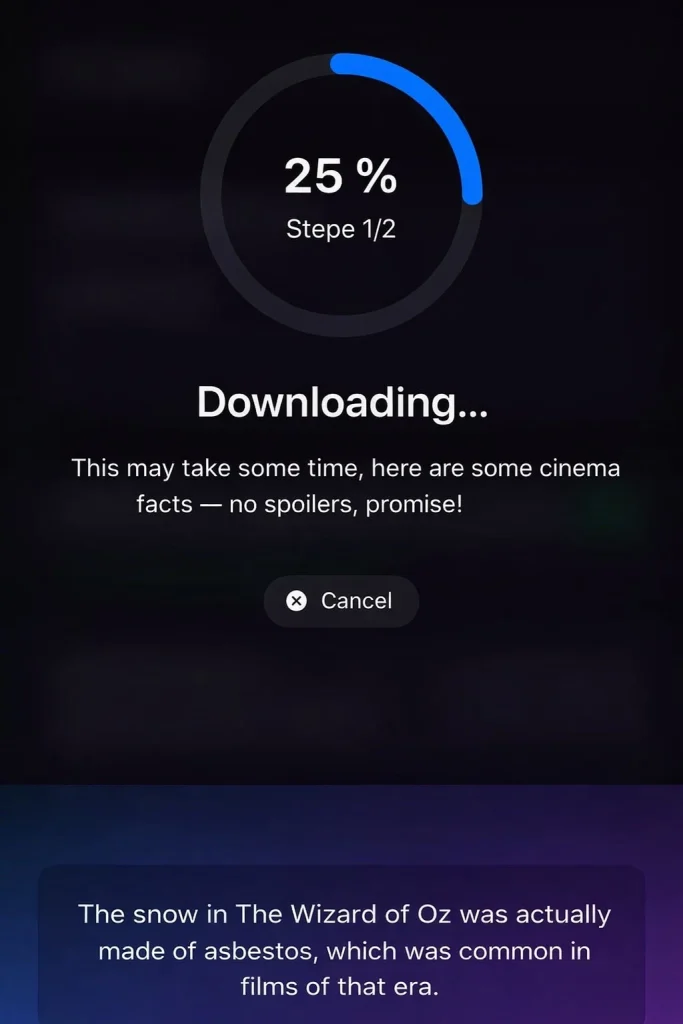
After that, we wait a few minutes for the content to load.
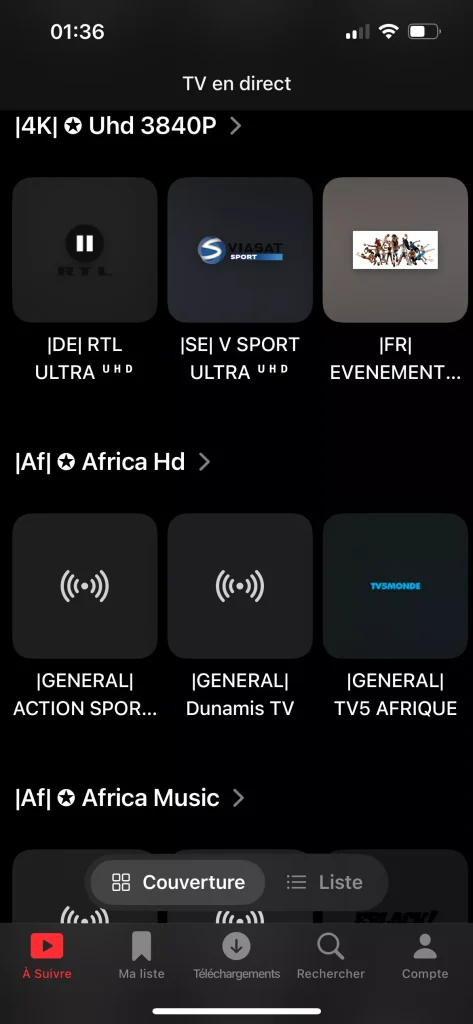
After that, you can watch live broadcasts comfortably, smoothly, and in high quality.
How to use IPTV in Android ?
1. IPTV :
IPTV is an efficient media player for Android users that allows easy playback of channels and live broadcasts through a simple interface. It supports M3U and XSPF playlists, playlist history, EPG in XMLTV and JTV formats, internal and external players, and parental controls. The app does not include built-in channels and works only with user-provided playlists.
How to use it ?
To begin the usage experience, we will first download the application from the Google Play Store.
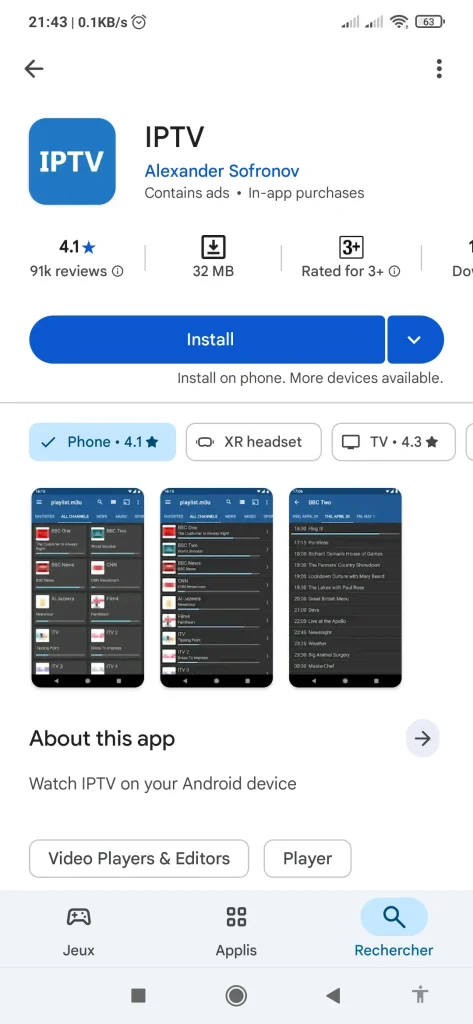
After that, we will open the application and add a playlist from the section shown on the screen.
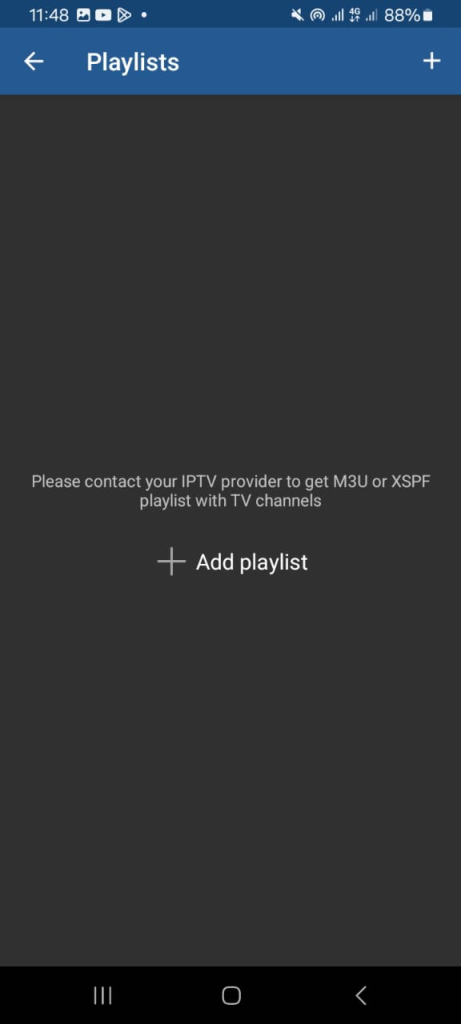
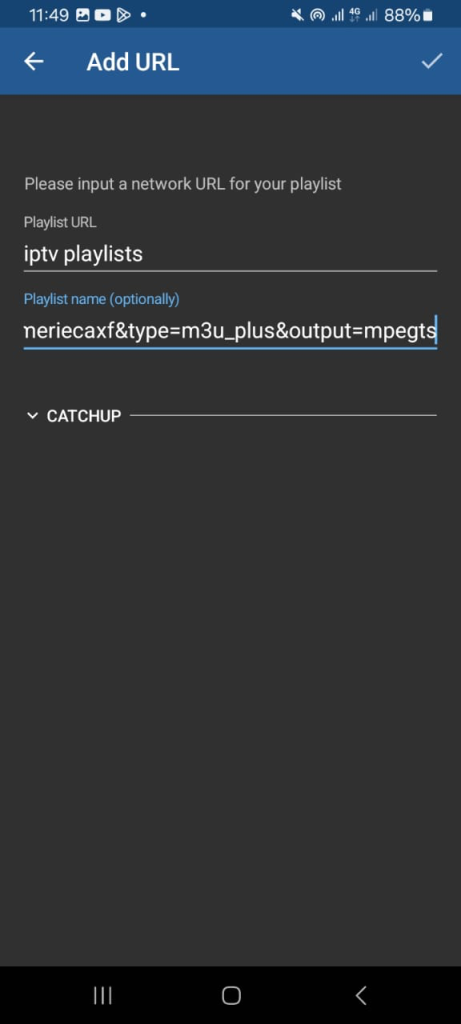
We will choose the format we want to use to add the playlist, then add the playlist and wait for the content to load.
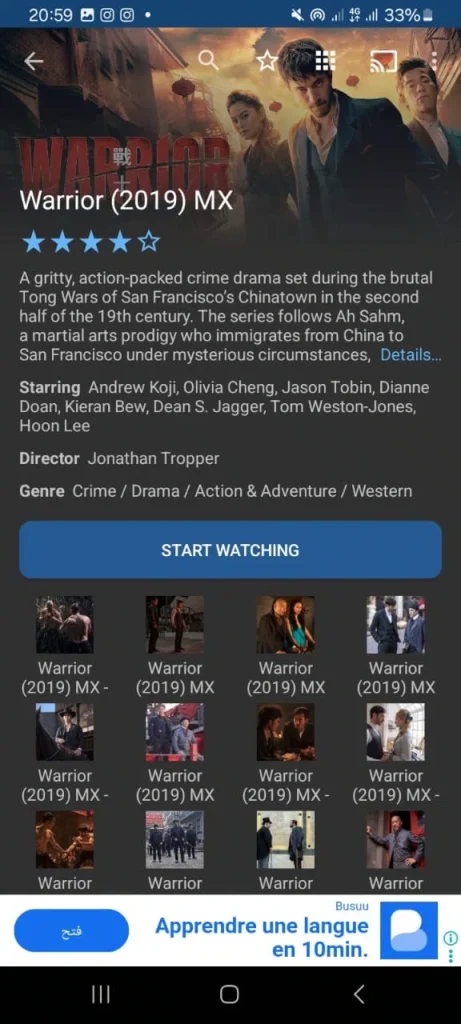
After that, the content will be ready to watch.
2. IPTV PLAYER :
IPTV Player is a dedicated digital playlist player that delivers a stable viewing experience with support for multiple playback formats. The app allows easy import of M3U and M3U8 playlists, channel organisation, and smooth live streaming with advanced control tools. It does not include any built-in content and relies entirely on user-added playlists, offering fast performance and broad compatibility with Android devices.
How to use it ?
We will first download our application from Google Play.
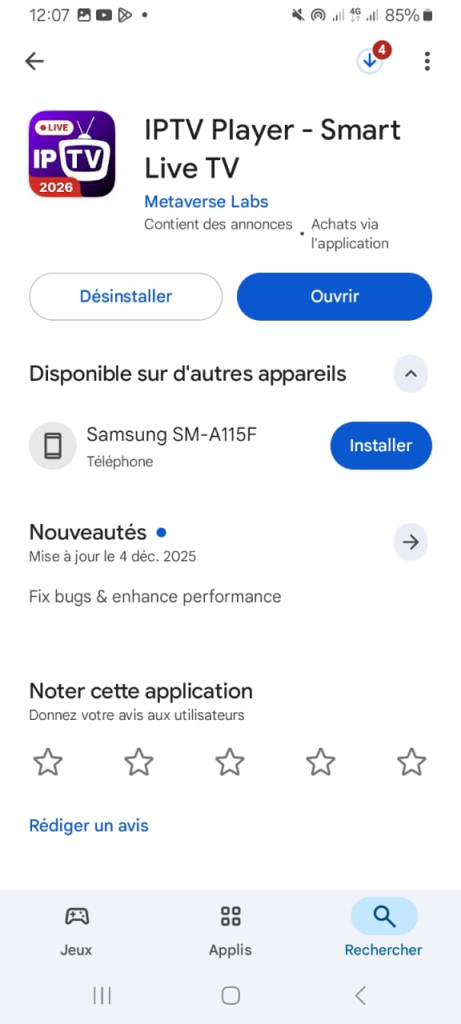
After that, we will open the application and some instructions on how to use it will appear. We will then add the playlist from the location shown in the image.
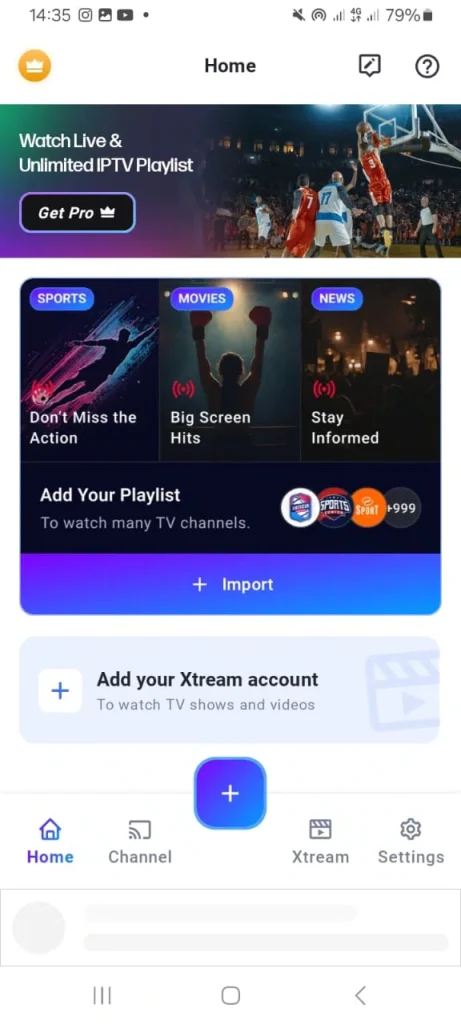
We will choose the playlist format we want to add. In this case, we have selected the Xtream Codes format.
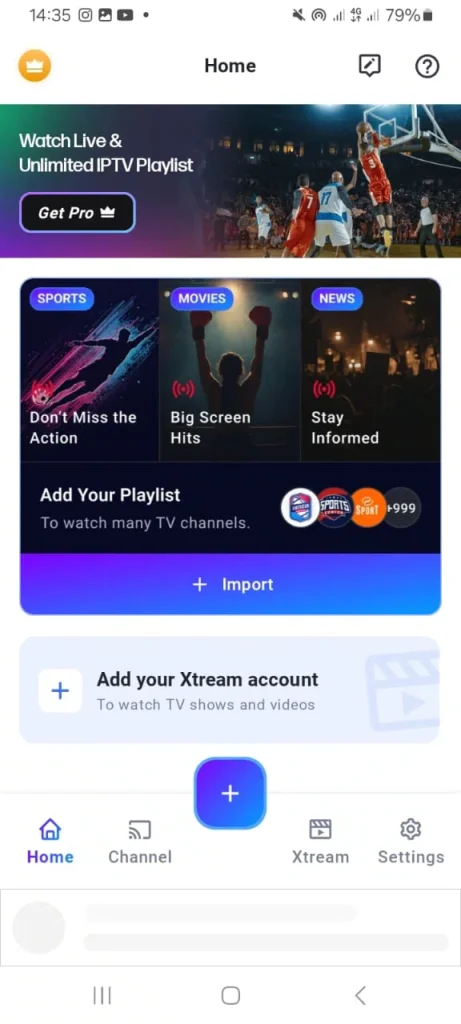
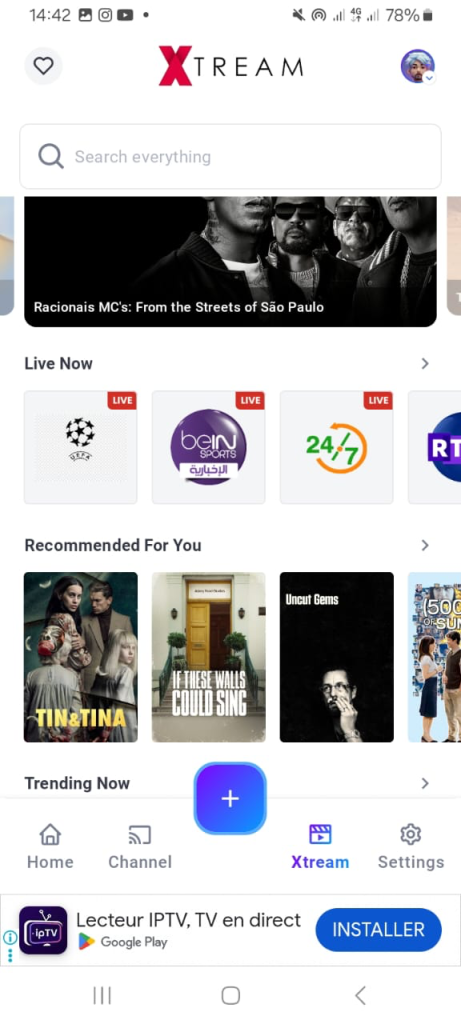
After filling in the required information and adding the playlist, we will wait a short while for the content to load. Once completed, we can enjoy watching without any issues.
3. IPTV smarters Pro :
Iptv smarters pro is an advanced application that delivers high performance and a modern design, with full support for live streaming and on-demand content. It features built-in media players using ExoPlayer and VLC, EPG integration, catch-up, VOD and series support, favourites, recording options, and backup synchronisation. The app does not include any built-in content and relies entirely on user-provided sources.
How to use it ?
To begin our experience with the IPTV Smarters Pro application, we will first download it via this link, as it is not available on Google Play.
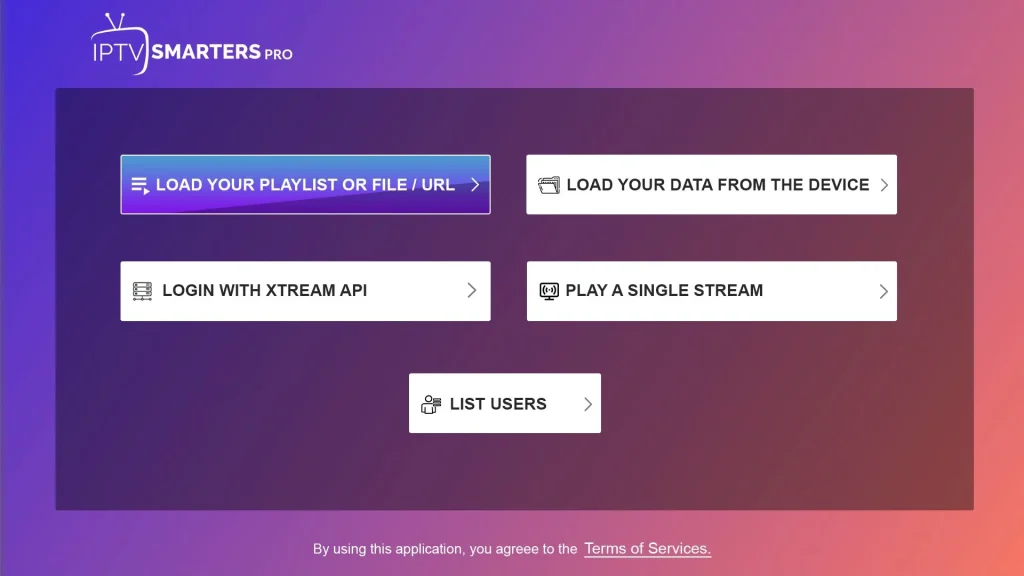
After opening the application, the interface will display the available formats for adding a playlist. We will choose to add a playlist using the Xtream Codes format.
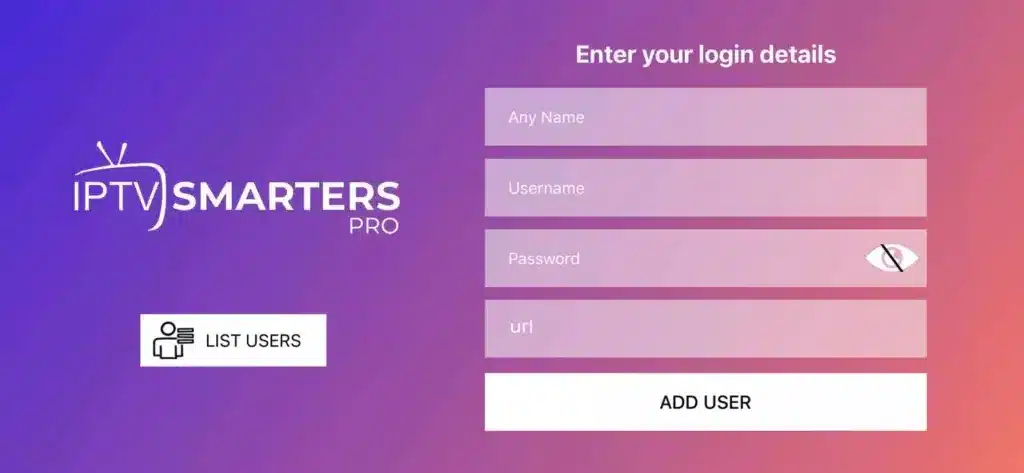
We will enter the Xtream Codes details provided by the service provider by adding a name for the playlist, the username, the password, and the server URL.
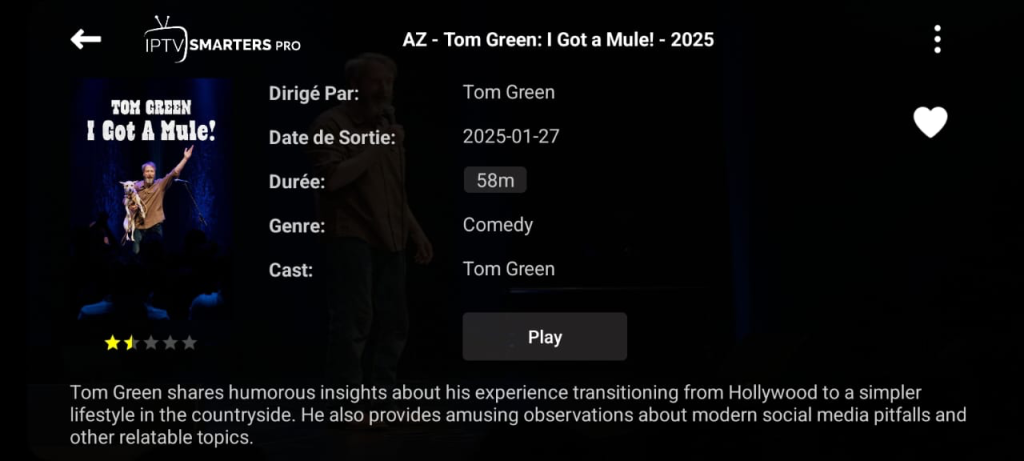
After a short while, the content will load, and you can then watch through the application smoothly.
4. Televizo :
Televizo is a lightweight and fast player that focuses on smooth performance and ease of use, with practical channel organisation features. It follows the latest trend in digital viewing, delivering high streaming quality and helping to offer reliable playback. The app supports Chromecast for enjoying live TV online on larger screens and is well suited for users interested in watching IPTV on Android devices.
How to use it ?
First, download the application from the Play Store.
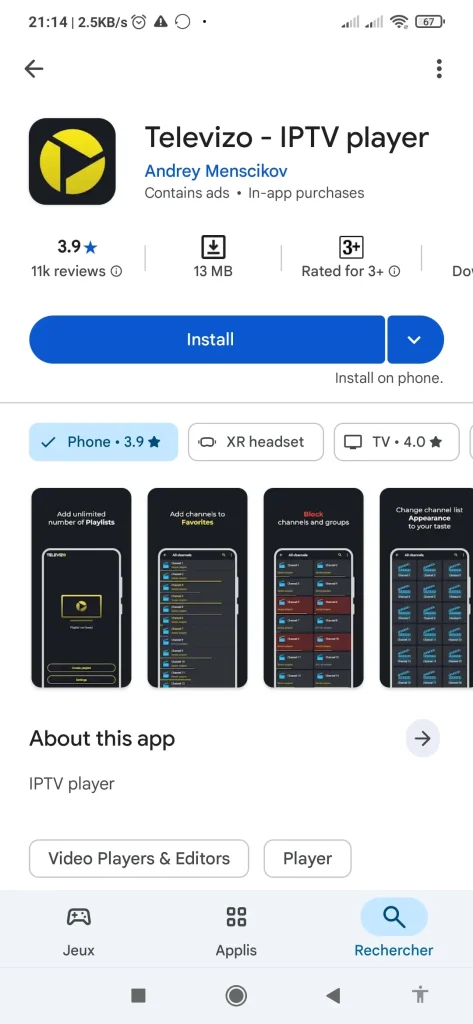
After that, we download the application and open it. On the main interface, as shown in the image, we will see the option Create Playlist , from which we can add a playlist.
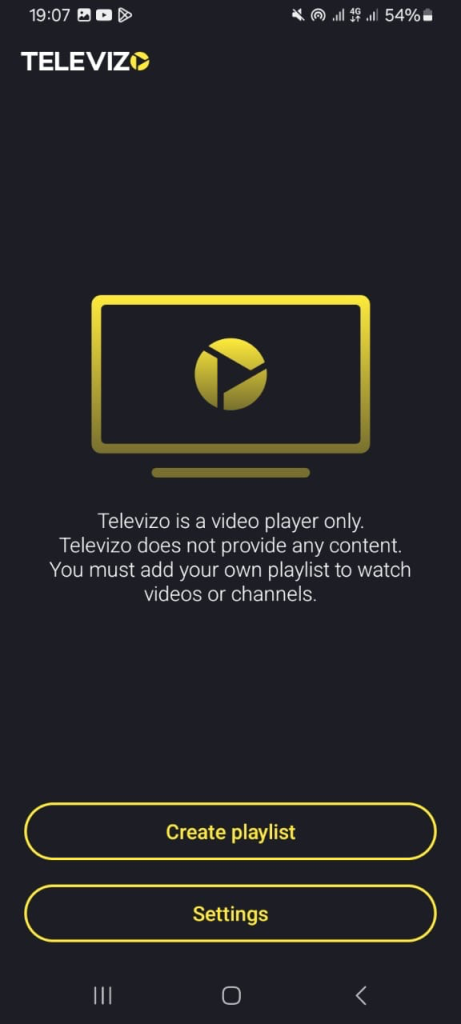
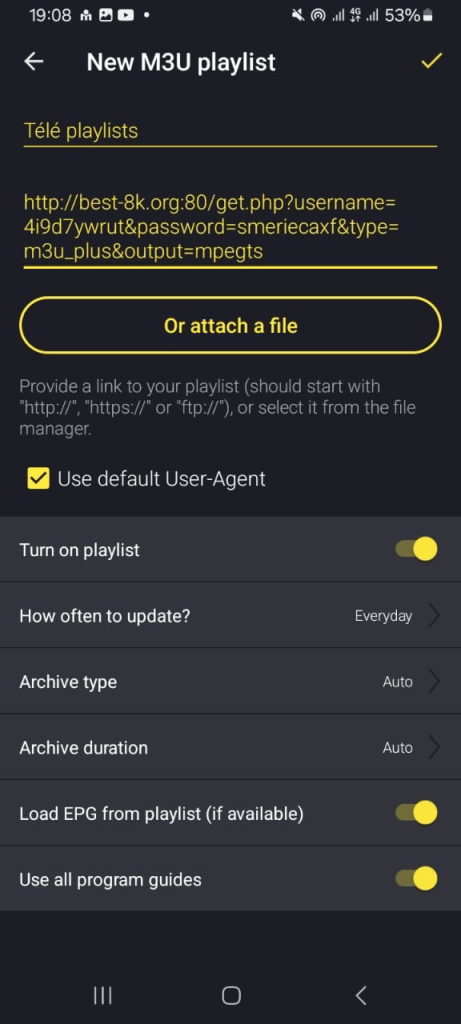
The application gives you the choice between two formats: Xtream Codes and M3U. We chose to add a playlist using the M3U format, entered the required information, and then added it. After that, we waited for the content to load.
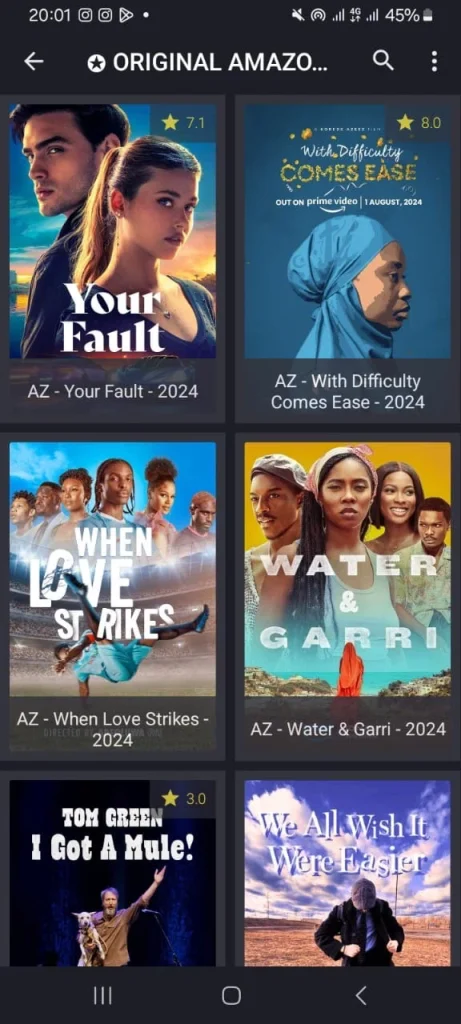
After a few minutes, you will find the content fully loaded and ready to watch.
5. XTREAM IPTV :
Xtream IPTV is one of the most popular media players, offering advanced tools for playlist management and wide format support. It works smoothly with popular IPTV services, allowing users to watch IPTV content with a stable and refined streaming experience. Depending on the provider, it also supports simultaneous connections, making it suitable for use across multiple Android devices.
How to use it ?
We will start by downloading this application from Google Play.
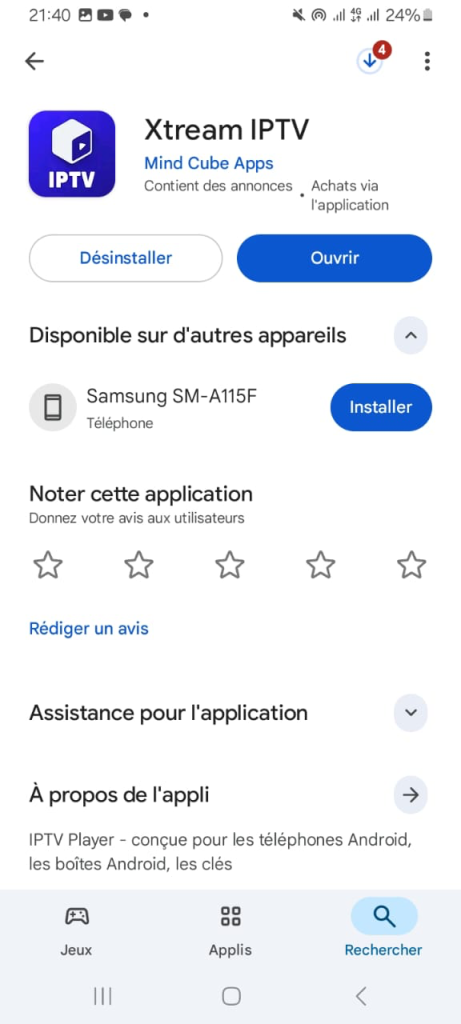
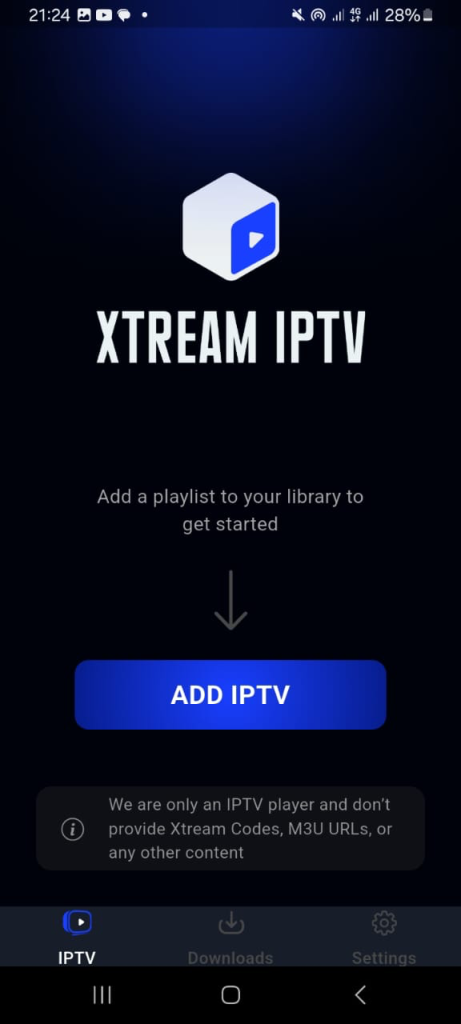
After that, on the screen we will see the option Add IPTV. We will tap on it in order to add the playlist.
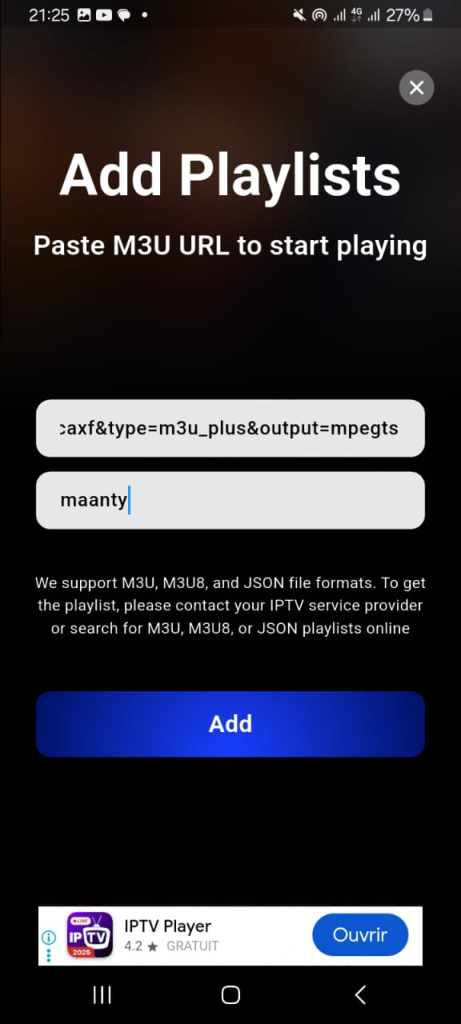
We enter the required M3U information by copying the server URL and assigning a name to the playlist.
The content will load, and the live broadcast will be ready to watch.

6. IPTV stream player:
IPTV stream player is a powerful application for Android users, featuring advanced customisation options and stable performance during viewing. It highlights what modern IPTV offers, allowing users who need an IPTV solution to easily configure playlists on any mobile device. When using one, users benefit from recording options, EPG tools, and theme support, with some features available offline. The app is available on Google Play and designed for flexible everyday use.
How to use it ?
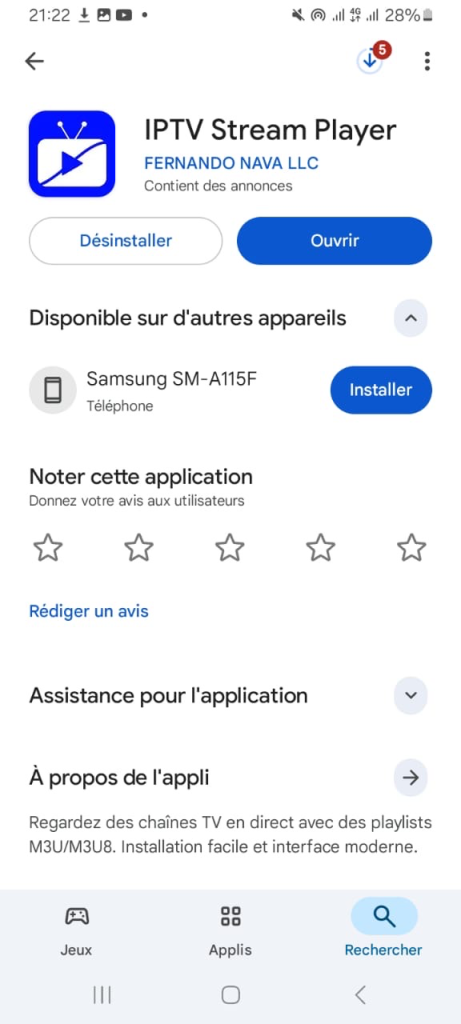
We will first download the application from Google Play.
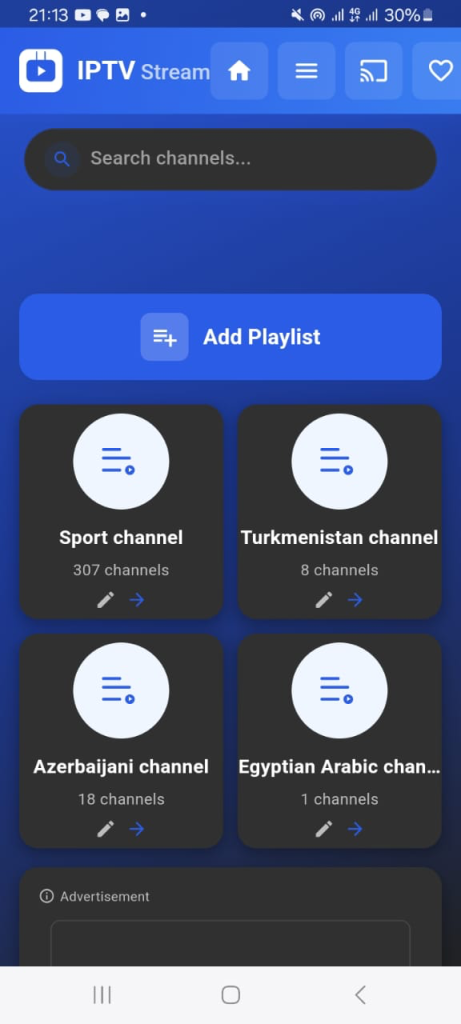
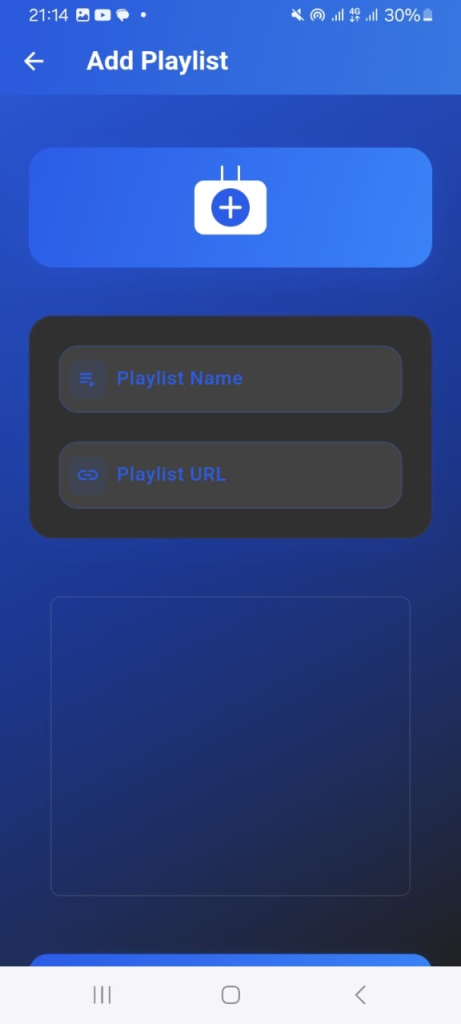
After that, we will open the application and add the playlist from the section labelled Add Playlist .
We enter the required information by giving the playlist a name and pasting the URL link that we received from the service provider.
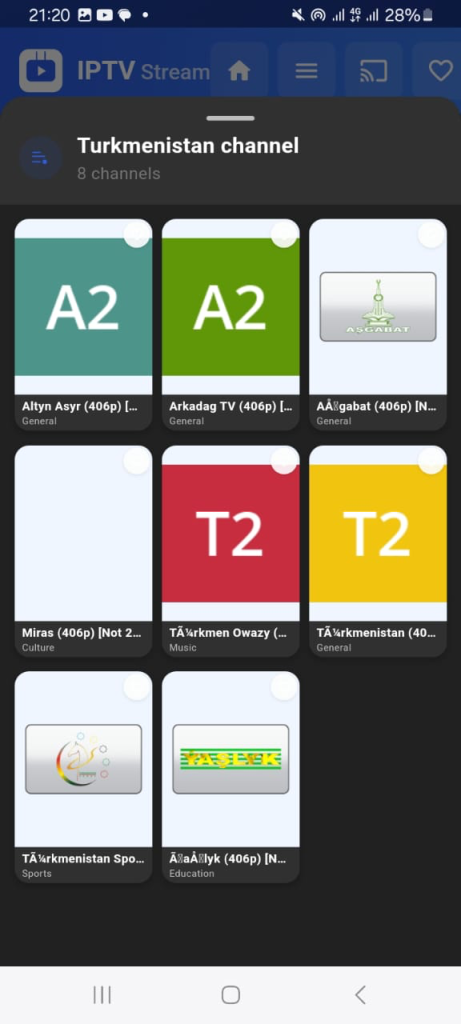
We will wait a few minutes for the content to load, after which you can start watching.
7. IPTV :
IPTV provides a practical solution for accessing channels and digital content online, offering a flexible experience for different users. The app supports M3U, M3U8, and Xtream Codes, enabling smooth playback of live TV and on-demand media on Android devices. It includes search tools, favourites, EPG support, Chromecast compatibility, and relies entirely on user-added playlists.
How to use it ?
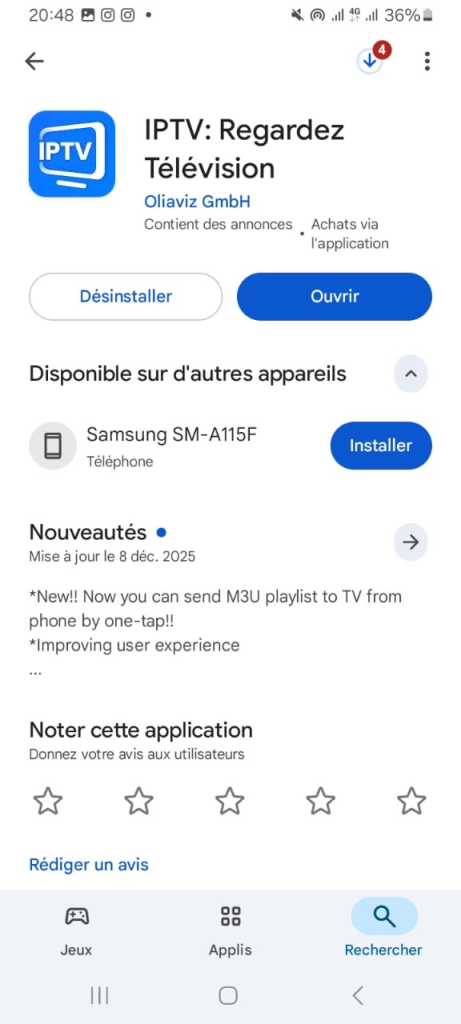
We will do the same thing again by downloading the application from the Play store.
After opening the application, several steps and notifications will appear explaining how to add a playlist, along with information about the premium version. We will skip these instructions and notifications in order to go directly to the playlist addition screen.
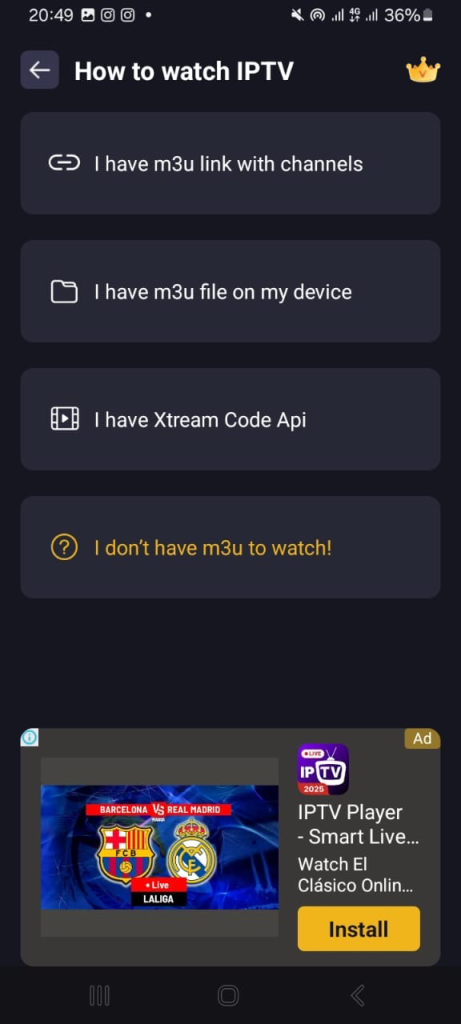
After that, we will choose the format in which we want to add the playlist. We have selected the M3U format, entered the required information, including the server URL, and then added the playlist
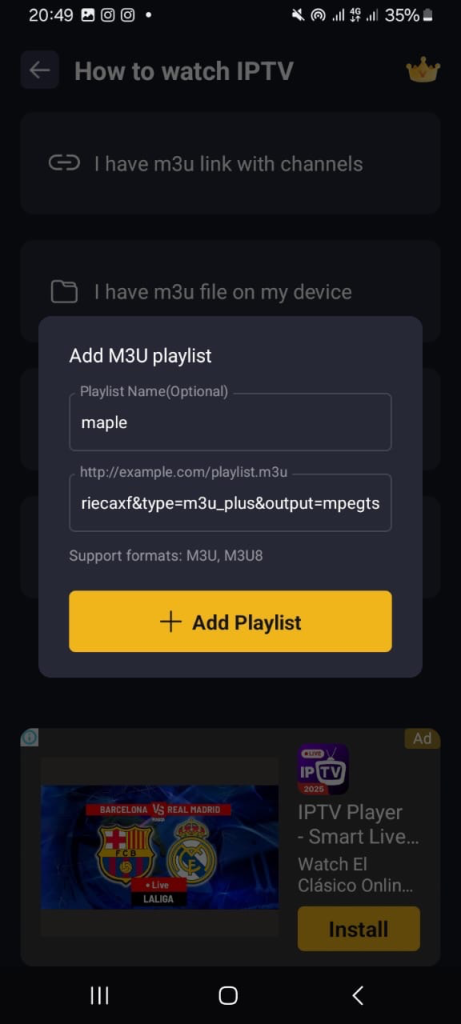
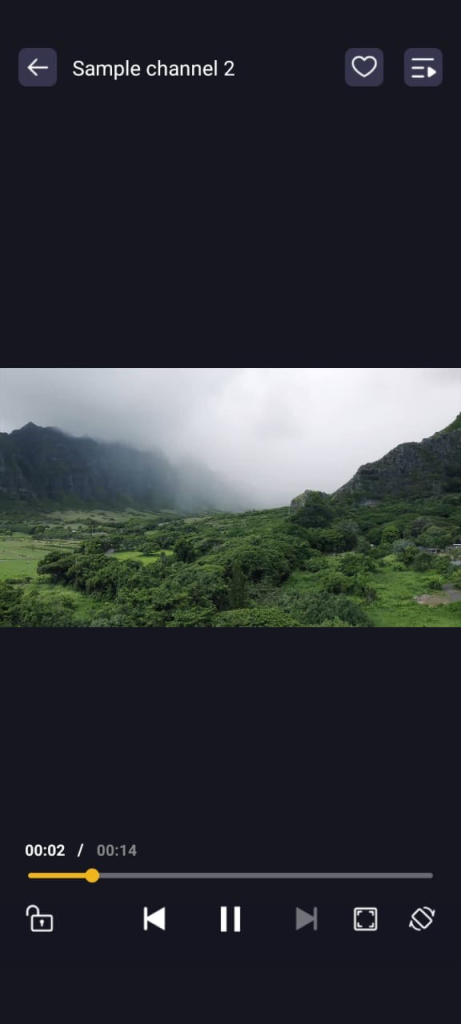
After adding it, we waited a few minutes for the content to load. After that, you can watch live streaming and live television smoothly and without issues.
Conclusion :
Our team has aimed to present a selection of the best IPTV applications for both iOS and Android devices, along with clear, step-by-step instructions on how to use IPTV with each one. We hope you found this guide helpful, and we invite you to share your thoughts in the comments.

I studied modern technology at college and have extensive experience in applications and viewing solutions. Due to my work, which requires frequent travel, I rely on modern technologies to keep up with my favourite programmes.